Set Up & Switch: Your Easy Guide to Changing Roku TV Inputs with Remote & More
Roku TVs have revolutionized home entertainment, offering an incredibly user-friendly platform that seamlessly integrates streaming services with traditional television viewing. Whether you're a long-time Roku enthusiast or a new owner, the ability to connect and switch between various external devices – be it a gaming console, a Blu-ray player, a cable box, or another streaming stick – is fundamental to maximizing your TV's potential. If you're wondering
how to change input on Roku TV to access your connected gadgets, you've come to the right place. This comprehensive guide will walk you through every step, ensuring you can effortlessly navigate your TV's inputs, even if your remote goes missing.
Understanding Roku TV Inputs: More Than Just Streaming
Before diving into the "how-to," it's beneficial to understand what inputs are and why they matter. Inputs are physical ports on your television that allow you to connect external devices. Roku TVs, renowned for their simplicity, typically come equipped with a variety of input options to cater to diverse needs:
*
HDMI Ports (High-Definition Multimedia Interface): These are the most common and versatile inputs, essential for high-definition video and audio. Many Roku TVs feature multiple HDMI ports (e.g., HDMI 1, HDMI 2, HDMI 3), with at least one often designated as HDMI ARC (Audio Return Channel) or eARC (Enhanced Audio Return Channel) for simplified audio connections to soundbars or AV receivers. You'll connect gaming consoles, cable boxes, Blu-ray players, and other streaming devices here.
*
Composite (A/V) Ports: Often color-coded (yellow for video, red/white for audio), these analog inputs are found on many Roku TVs, especially older models, and are used for connecting legacy devices like VCRs, older game consoles, or DVD players.
*
USB Ports: Primarily for connecting USB drives to play local media (photos, videos, music) or for powering certain external devices.
*
Antenna/Cable Input: For connecting an over-the-air antenna to receive free local channels or a coaxial cable from your service provider for traditional cable TV.
*
Ethernet (LAN) Port: Provides a wired internet connection, often preferred for stability over Wi-Fi, especially for high-bandwidth streaming.
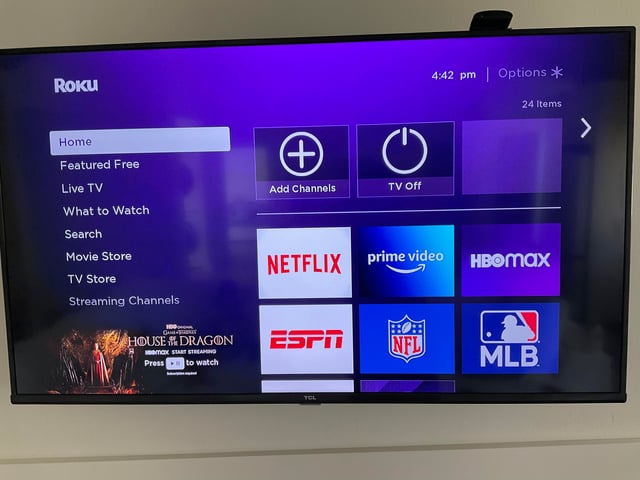
Roku TV's genius lies in how it integrates these inputs directly into its home screen interface. Once set up, each input becomes an easily selectable "tile," just like your favorite streaming apps, making the process of
changing input on Roku TV intuitive and fast.
The Standard Way: How to Change Input on Roku TV with Your Remote
The most straightforward method for managing your TV's connections is using your dedicated Roku TV remote. Its minimalist design makes navigation incredibly simple.
Follow these steps to access and switch your Roku TV inputs:
1.
Press the Home Button: Locate the 'Home' button on your Roku remote (it usually has a house icon). Pressing this button will always take you back to the main Roku TV home screen, where all your streaming channels and inputs reside.
2.
Navigate to Settings: Use the directional pad (the up, down, left, right arrows) on your remote to scroll down the left-hand menu. Select 'Settings' and press 'OK' (the button in the center of the directional pad).
3.
Select TV Inputs: Within the 'Settings' menu, scroll down and select 'TV Inputs'. Press 'OK'.
4.
Configure Your Inputs: You'll now see a list of available inputs like "HDMI 1," "HDMI 2," "Antenna TV," etc. For each input you plan to use, select it and then choose 'Set up Input'. This crucial step allows you to:
*
Rename the input: Instead of "HDMI 1," you can rename it to "PlayStation 5" or "Cable Box" for easier identification. This makes it much clearer when you're
changing input on Roku TV which device you're selecting.
*
Choose an icon: Assign a relevant icon to further customize it.
*
Remove input: If you no longer use a particular port, you can remove it from your home screen.
5.
Return to the Home Screen: After setting up your desired inputs, press the 'Home' button again.
6.
Select and Switch: You will now see your configured inputs appear as tiles directly on your Roku TV home screen, alongside your streaming apps. Simply use your remote's directional pad to select the tile corresponding to the device you wish to use (e.g., "PlayStation 5") and press 'OK'. Your Roku TV will immediately switch to that input.
Pro Tip: Once your inputs are set up and appear as tiles on the home screen, you can also reorder them. Go back to the 'Home' screen, highlight an input tile, press the 'Options' button (asterisk * button) on your remote, and select 'Move channel' to reposition it for quick access. This is a great way to prioritize your most frequently used devices.
Remote Lost? How to Change Input on Roku TV Using the Mobile App
It happens to the best of us: the remote disappears into the couch cushions, or perhaps the batteries die at the most inconvenient moment. Fortunately, you don't need a physical remote to control your Roku TV. The free Roku Mobile App, available for both iOS and Android devices, transforms your smartphone or tablet into a fully functional Roku remote, allowing you to easily
change input on Roku TV.
Here’s how to use the Roku Mobile App to switch inputs:
1.
Ensure Connectivity: Make sure your Roku TV is turned on and, crucially, that your mobile device is connected to the *same Wi-Fi network* as your Roku TV. This is the most common reason for connection issues.
2.
Download the Roku Mobile App: If you haven't already, download and install the "Roku" app from your device's app store (Google Play Store for Android, Apple App Store for iOS).
3.
Open the App and Connect: Launch the Roku app. It will automatically scan your network for Roku devices. Select your Roku TV from the list that appears.
4.
Pair Your Device: Follow any on-screen prompts to complete the connection process. Once connected, your phone's screen will display a virtual remote control.
5.
Navigate to the Home Screen: Use the virtual 'Home' button on the app's remote interface.
6.
Access Settings and Inputs:
* From the home screen, navigate to 'Settings' (using the app's directional pad).
* Select 'TV Inputs'.
* Choose the input you want to switch to (e.g., 'HDMI 1') and then select 'Set Up Input' if you haven't configured it yet, or simply select the already configured input directly from the home screen to switch.
The Roku Mobile App is an incredibly powerful tool, offering voice search, private listening (through headphones connected to your phone), and easy navigation, making it a fantastic alternative to the physical remote. For more in-depth guidance on using your phone as a remote, check out our article:
No Remote? How to Change Roku TV Input Using Your Phone App.
Maximizing Your Roku TV Experience: Tips for Input Management
Beyond simply knowing
how to change input on Roku TV, there are several advanced tips and considerations to help you get the most out of your setup:
*
Always Rename Your Inputs: As mentioned, renaming "HDMI 1" to "Xbox Series X" or "Blu-ray Player" drastically improves usability. It eliminates guesswork and makes the Roku TV experience even more intuitive for everyone in the household.
*
Order for Convenience: Place your most frequently used inputs (like your primary gaming console or cable box) at the top of your home screen for quick access. This saves scrolling time and makes switching faster.
*
Troubleshooting "No Signal": If you switch to an input and see a "No Signal" message, first ensure the connected device is powered on. Next, check the physical cable connection at both the TV and the device. Sometimes simply unplugging and replugging the HDMI cable can resolve the issue. If it persists, try another HDMI port on your TV or a different HDMI cable.
*
Leverage HDMI ARC/eARC: If your Roku TV has an HDMI ARC or eARC port, use it to connect your soundbar or AV receiver. This allows audio from all other inputs connected to your TV to be sent back to your sound system via a single HDMI cable, simplifying your audio setup and often allowing your TV remote to control your soundbar's volume.
*
Connect the Right Devices:
*
Gaming Consoles: Use HDMI ports for the best video and audio quality. Consider using a 4K HDMI cable for 4K consoles.
*
Cable/Satellite Boxes: Connect via HDMI for digital picture and sound.
*
Blu-ray/DVD Players: HDMI is the preferred connection.
*
Older Devices: For VCRs or classic gaming consoles, you might need to use the composite (A/V) inputs.
*
Utilize Antenna TV: Don't forget the 'Antenna TV' input! With a simple over-the-air antenna, you can receive free local HD channels, seamlessly integrated into your Roku TV experience.
Mastering your Roku TV's inputs transforms it into the ultimate entertainment hub, effortlessly switching between live TV, streaming services, and all your external devices. For more expert advice on optimizing your Roku TV's connections, explore our comprehensive guide:
Mastering Roku TV Inputs: Connect & Switch Devices Effortlessly.
Conclusion
Changing inputs on your Roku TV is a fundamental skill that unlocks the full potential of your entertainment system. Whether you're using the dedicated remote or the versatile mobile app, Roku's intuitive interface makes the process incredibly straightforward. By following these steps and incorporating our expert tips, you can seamlessly transition between your favorite streaming apps, high-definition gaming, cable TV, and more, all from your Roku TV's personalized home screen. Enjoy the freedom and flexibility that comes with effortlessly managing all your connected devices!