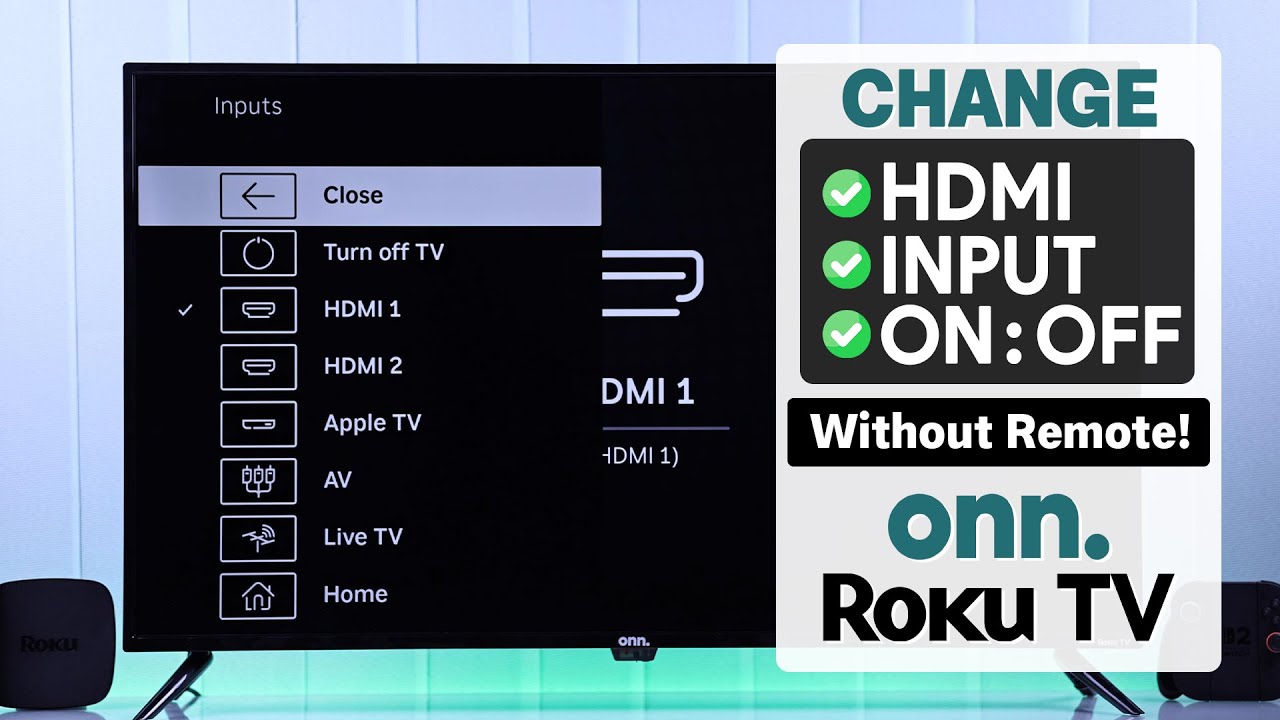
No Remote? How to Change Roku TV Input Using Your Phone App
Roku TVs have revolutionized home entertainment, offering seamless access to a vast universe of streaming content. Their intuitive interface makes them a popular choice for many households. But what happens when you want to switch from Netflix to your gaming console, or from live TV to your Blu-ray player, and your trusty Roku remote is nowhere to be found? The frustration is real, but thankfully, there's a brilliant, tech-savvy solution that saves the day: your smartphone.
You might be wondering, "how to change input on Roku TV if I don't have the remote?" This comprehensive guide will walk you through the simple, yet essential, steps to utilize the Roku mobile app as your ultimate command center, allowing you to effortlessly change inputs and much more, all from the palm of your hand.
The Lifesaver: Why Your Phone is the Ultimate Roku Remote
The Roku mobile app isn't just a substitute for your lost remote; it's an upgrade. Designed for both iOS and Android devices, this free application transforms your smartphone into a powerful, feature-rich controller for your Roku TV. It’s an indispensable tool, especially when your physical remote goes missing, runs out of battery, or simply decides to play hide-and-seek.
Beyond simply navigating menus and playing/pausing content, the app offers functionalities that even the standard remote can't match. Imagine having a full keyboard for typing in search queries, voice search capabilities for quick content discovery, or even private listening through your headphones connected to your phone. These features elevate your viewing experience and make the absence of a physical remote feel less like a problem and more like an opportunity to discover new conveniences.
Step-by-Step Guide: How to Change Input on Roku TV Using the Mobile App
Changing your Roku TV input without a remote is incredibly straightforward once you have the Roku mobile app set up. Follow these steps carefully to regain full control over your connected devices.
Pre-requisites for Seamless Connection:
- Turn on Your Roku TV: Ensure your TV is powered on and functioning.
- Same Wi-Fi Network: This is crucial. Your smartphone (or tablet) must be connected to the exact same Wi-Fi network as your Roku TV. If they are on different networks, they won't be able to communicate.
Installation and Connection:
- Install the Roku Mobile App:
- For Android users, head to the Google Play Store.
- For iOS users, open the Apple App Store.
- Open the Roku Mobile App: Launch the app on your smartphone once it's installed.
- Find Your Roku Device: The app will automatically scan for Roku devices connected to your Wi-Fi network. You should see your Roku TV appear in the list. If you have multiple Roku devices, ensure you select the correct one.
- Connect to Your Roku TV: Tap on your Roku TV from the list. Follow any on-screen prompts to establish the connection. Once connected, your phone screen will transform into a virtual remote.
Changing the Input:
Now that your phone is connected and acting as your remote, here's how to change input on Roku TV:
- Navigate to the Home Screen: On the Roku mobile app, you'll see a remote interface. Look for a "Home" button or a similar icon (often a house icon) to take you to your Roku TV's main home screen.
- Access Settings: Scroll down on your TV screen (using the navigation pad on your phone app) until you find "Settings." Select it.
- Go to TV Inputs: Within the Settings menu, navigate and select "TV Inputs." This section manages all the physical ports on your Roku TV.
- Select and Set Up Input: You'll see a list of available inputs like HDMI 1, HDMI 2, Live TV, AV, etc.
- For each input you want to use, select it and then choose "Set Up Input."
- This process allows you to name the input (e.g., "Xbox," "Blu-ray Player," "Cable Box") and activate it for easy access. Naming them makes it much clearer what's connected to which port.
- Return to Home and Switch: After setting up your desired inputs, go back to the Roku TV Home screen. You will now see your named inputs displayed as tiles alongside your streaming channels. Simply select the tile corresponding to the device you wish to access, and your Roku TV will switch to that input.
For those times you do have your remote handy, the process is slightly different but equally straightforward. You can learn more about managing your inputs with the physical remote by visiting our guide: Set Up & Switch: Easy Guide to Changing Roku TV Inputs with Remote.
Beyond Input Switching: Maximizing Your Roku Mobile App Experience
The Roku mobile app is a versatile tool that offers much more than just how to change input on Roku TV. Here are some advanced features you should explore:
- Private Listening: Connect headphones to your phone and activate private listening in the app. The TV audio will be redirected to your headphones, allowing you to watch without disturbing others – perfect for late-night viewing.
- Voice Search: Tap the microphone icon in the app and speak your desired movie, show, actor, or channel. Roku's powerful search will scour across all your enabled channels.
- Virtual Keyboard: Say goodbye to tediously clicking letters with a directional pad. The app's virtual keyboard makes entering passwords, search terms, and email addresses much faster.
- Cast to TV: Share photos, videos, and music stored on your phone directly to your Roku TV. Look for the "Media" or "Cast" option within the app.
- Add Channels: Browse the Roku Channel Store directly from your phone and add new channels to your TV with a tap.
Troubleshooting Common Issues When Using the Roku Mobile App
While generally reliable, you might encounter a few hiccups when using the Roku mobile app. Here’s how to troubleshoot them:
- App Not Finding Roku TV:
- Check Wi-Fi: Double-check that both your phone and Roku TV are on the *exact same* Wi-Fi network. Sometimes, routers create separate 2.4GHz and 5GHz bands; ensure both devices are on the same band.
- Restart App: Close the Roku app completely and reopen it.
- Restart Devices: Try restarting your Roku TV (unplug it for 10 seconds, then plug it back in) and your smartphone. A router reboot can also sometimes resolve connectivity issues.
- Lagging or Unresponsive App:
- Network Congestion: If your Wi-Fi network is busy with many devices, it might cause lag.
- App Updates: Ensure your Roku mobile app is updated to the latest version.
- TV Updates: Check if your Roku TV's operating system needs an update via Settings > System > Software update.
- Limited Functionality: If some features aren't working, verify that you've granted the app all necessary permissions on your phone (e.g., microphone access for voice search).
Pro Tips for Seamless Input Management on Your Roku TV
Once you're comfortable with how to change input on Roku TV using your phone, consider these tips to make your experience even smoother:
- Rename Your Inputs: Instead of "HDMI 1," "HDMI 2," etc., use descriptive names like "Gaming Console," "Cable Box," "Blu-ray," or "PC." This customization is easily done during the "Set Up Input" process and makes switching much more intuitive.
- Rearrange Input Tiles: On your Roku TV's home screen, you can often move input tiles to your preferred order, just like channels. Highlight an input tile, press the asterisk (*) button on your phone app's remote interface, and select "Move channel" to reposition it.
- Utilize Auto-Switching: Some Roku TVs can automatically detect and switch to an active input when a device connected to it is turned on. While this isn't always foolproof, it's a convenient feature to leverage.
- Understand Your Ports: Familiarize yourself with the types of inputs on your Roku TV (HDMI, composite A/V, USB, antenna, Ethernet). Knowing which port you're using for each device helps with setup and troubleshooting. For a deeper dive into managing all your Roku TV inputs, check out our guide: Mastering Roku TV Inputs: Connect & Switch Devices Effortlessly.
Conclusion
Losing your Roku TV remote no longer means losing control of your entertainment. The Roku mobile app stands as a testament to modern convenience, providing a powerful and intuitive way to manage every aspect of your Roku TV, including the crucial task of how to change input on Roku TV. By following these steps and exploring the app's many features, you'll not only solve the "lost remote" dilemma but also discover a more enriched and efficient way to interact with your home entertainment system. Embrace the power of your smartphone and enjoy seamless switching between all your connected devices.